
Devices compatible with AudAssist:
-
AudAssist 2.0: A-02 Headphones Only
-
AudAssist 3.0: Audeara Buds and A-02 Headphones
If you currently do not run AudAssist 3.0 and you are looking to personalise Audeara Buds, you can complete the fitting on the Audeara Tune app. Alternatively, please speak to your clinic trainers regarding updating your software.
For A-02 Headphones:
-
Connect your Device to your PC directly using the provided USB-C Cable.
-
If the device is in pairing mode, you will need to connect the device to another Bluetooth device, and get the headset out of pairing mode to continue the fitting.
For Audeara Buds:
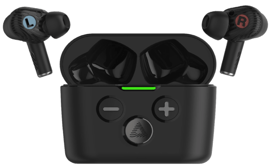
- Remove the Buds from the case first, ensuring the Buds are sufficiently charged.
- Plug the case into the PC directly using a USB-C Cable.
Device still not recognised by AudAssist?
-
Unplug the device, turn it off, then turn it back on and reconnect it to the computer.
If the device still does not appear in AudAssist, please contact support@audeara.com so our team can investigate further.
When contacting us, please include the following information:
- AudAssist version
- Clinic name and suburb
- PC model
- Operating system and version
Providing these details will help our team identify the cause of the connection issue and assist you as quickly as possible.