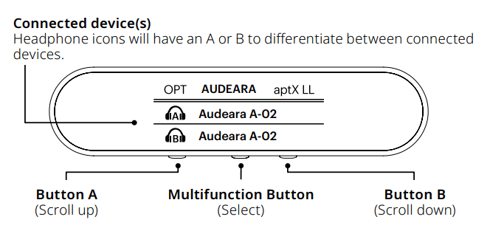
Your Audeara Buds come pre-paired to your TV streamer. Check to see if your TV streamer and Audeara Buds are connected.
Firstly, check to see if your Audeara Buds are paired and connected to the streamer:
To do this, open the Smart charging case, and keep the Buds in the Case. Then check the streamer;
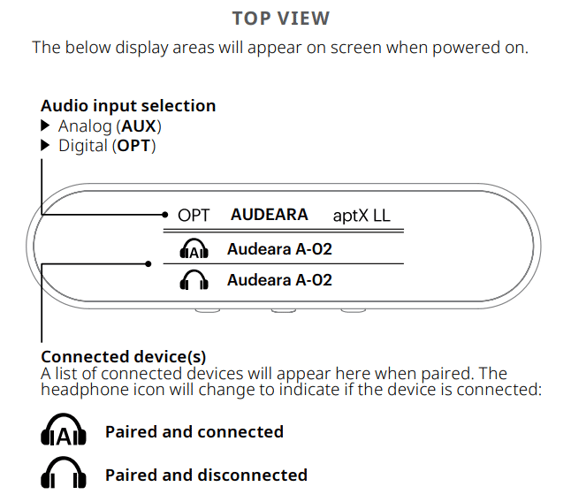
Ensure your TV Streamer is correctly connected to your TV by following these instructions. Follow the instructions below to connect your streamer and Buds if the screen indicates "Hold A or B to pair":
1. Put your BT-02 TV Streamer into Pairing Mode
- Hold down the ‘A’ or ‘B’ button on the TV Streamer for 3 seconds.
- The screen on the TV Streamer will now say “Searching…”
2. Put your Audeara Buds into Pairing Mode
- Ensure the buds are inside the case, with the lid of the case open.
- Hold the Multi Function Button on the case for 3s.
- Note: The LED Light Indicators on the case will cycle blue to confirm when the buds are in pairing Mode.
3. Your TV Streamer and Audeara Buds will connect automatically
- The LED Lights on the Audeara Buds will flash a solid blue when connected.
4. Ensure that you have selected the correct Audio Input option on your TV Streamer
Based on which cable you have used to connect your TV Streamer to the TV:
- If you have connected to the TV using the Digital Optical cable, slide the Audio Input Switch on the back of the TV Streamer to select 'Digital'.
- If you have connected to the TV using the Analog Audio cable (with or without the AV Adapter cable), slide the Audio Input Switch on the front of the TV Streamer to select 'Analog'.
When connected, your TV Streamer will look like this;