
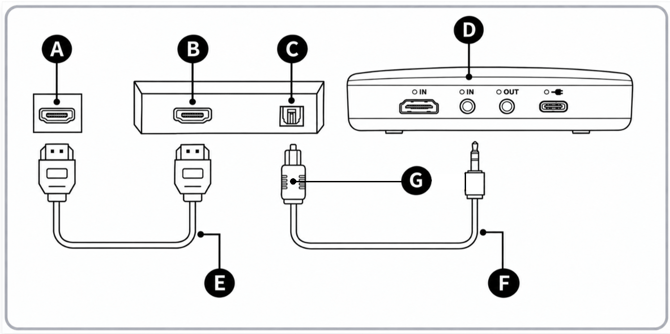
Legend
A: HDMI port (TV)
B: HDMI port (Foxtel, Fetch box or audio receiver)
C: Digital Optical Output (Foxtel or Fetch box)
D: Audio IN: SPDIF / AUX Port (Audio Broadcaster)
E: Additional HDMI Audio Cable
F: Provided Analog Audio Cable
G: Provided Digital Optical Adapter
Note: We do not provide an HDMI Audio Cable, an additional cable will be required.
1. Connect the Audio Broadcaster (pictured right in image above) to the Set Top Box or Audio receiver (pictured centre in image above) with the provided Analog Audio cable and Digtal Optical Audio adapter attached
- Leave your Set Top Box or Audio receiver plugged into your TV through the Additional HDMI Audio Cable.
- Plug one end of the Analog audio cable with the Digital Optical Audio adapter attached, into 'Digital Optical output port' on your Foxtel Box or Audio receiver, and the other end into the 'Audio IN: SPDIF / AUX Port' of your Audio Broadcaster.
- Ensure PCM is selected in your TV audio settings. For more information on changing your audio settings, see here.
Note: If you are using a Soundbar and would like sound to come through your TV, Soundbar, and Audeara Audio Broadcaster, please see here for instructions to connect your Audeara Audio Broadcaster with a sound bar.